

If you’re anything like me, you’ve got a thousand things running through your teacher brain at any given moment—lesson plans, copies to make, books to grab from the library, anchor charts to prep… it never ends.
For years, I lived off sticky notes. But they got lost, or crumpled, or I forgot which sticky note was for which day. That’s when I discovered Google Keep for teachers, my new best friend for teacher organization! It totally changed how I stay organized in and out of the classroom.
Whether you’re brand new to Google Keep or looking for ways to make it more teacher-friendly, this post will walk you through exactly how I use it as a 2nd grade teacher. And if you stick around, I’ve got a FREE download of 70+ Google Keep for Teachers headers to help you get started (including a few fun personal ones too!).
Want more tips for using Google apps as a teacher? Check out these blog posts:
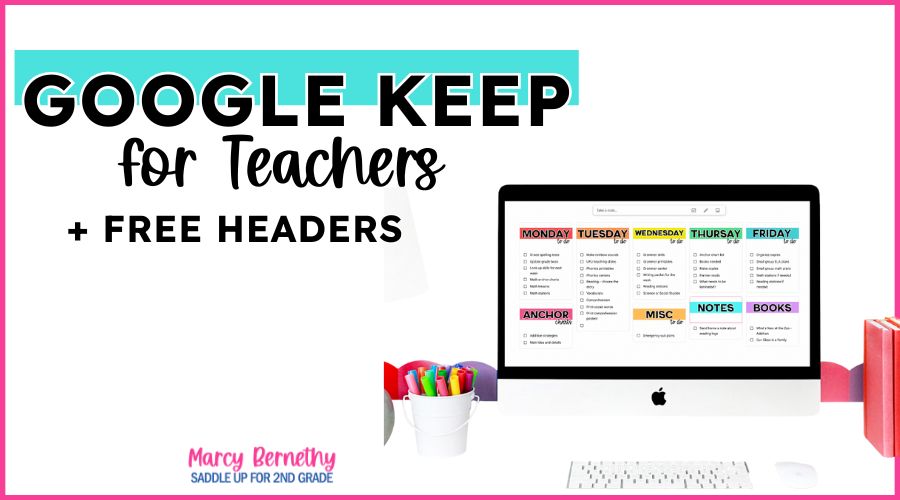
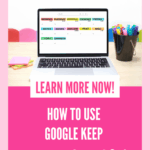
Google Keep is a free digital note-taking tool that works like virtual sticky notes, but so much better! Think of it as your personal command center where you can create a digital checklist, jot down quick notes, set reminders, and organize everything with colors and custom images.
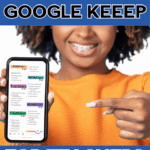
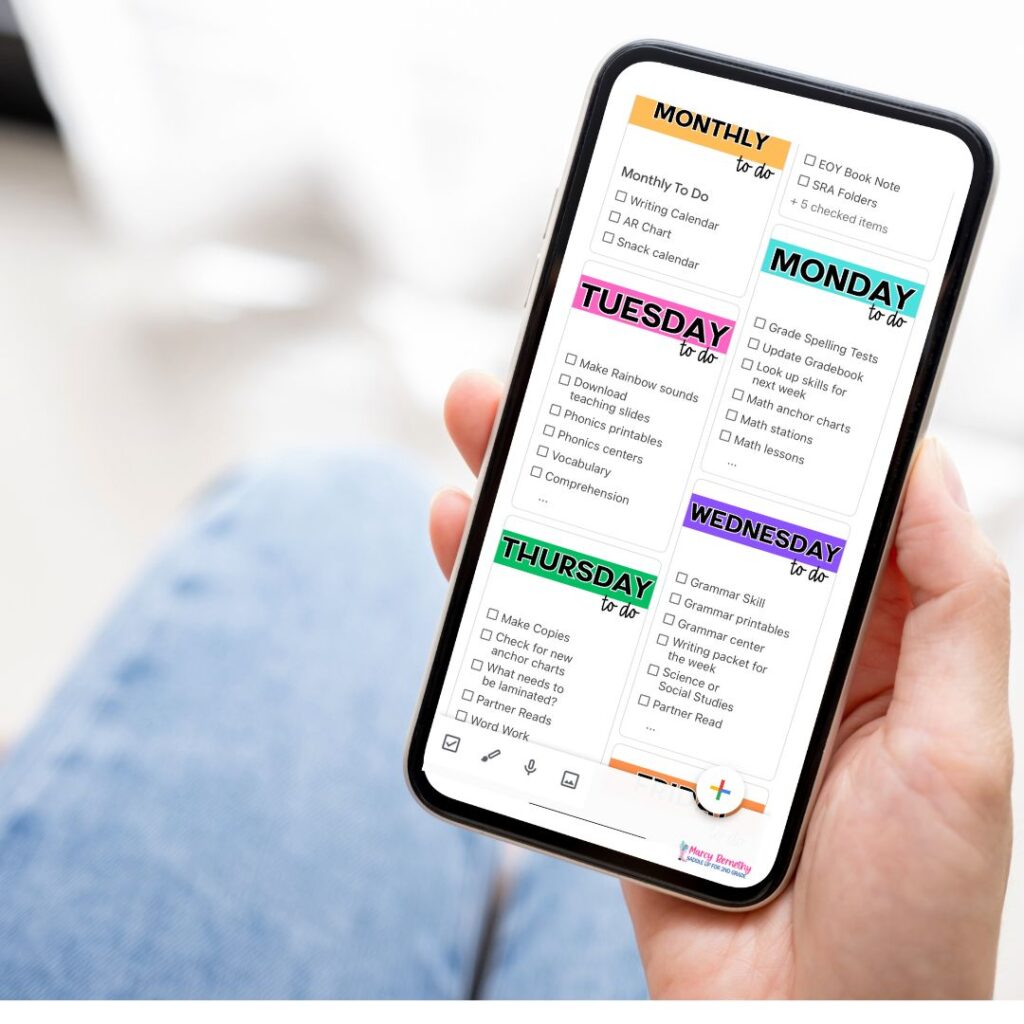
The best part? It syncs across all your devices automatically. Whether you’re at school on your computer, at home on your tablet, or grocery shopping with your phone, your lists are always with you. No more forgetting that important reminder you wrote on a sticky note at school!
It really is a teacher organization dream!
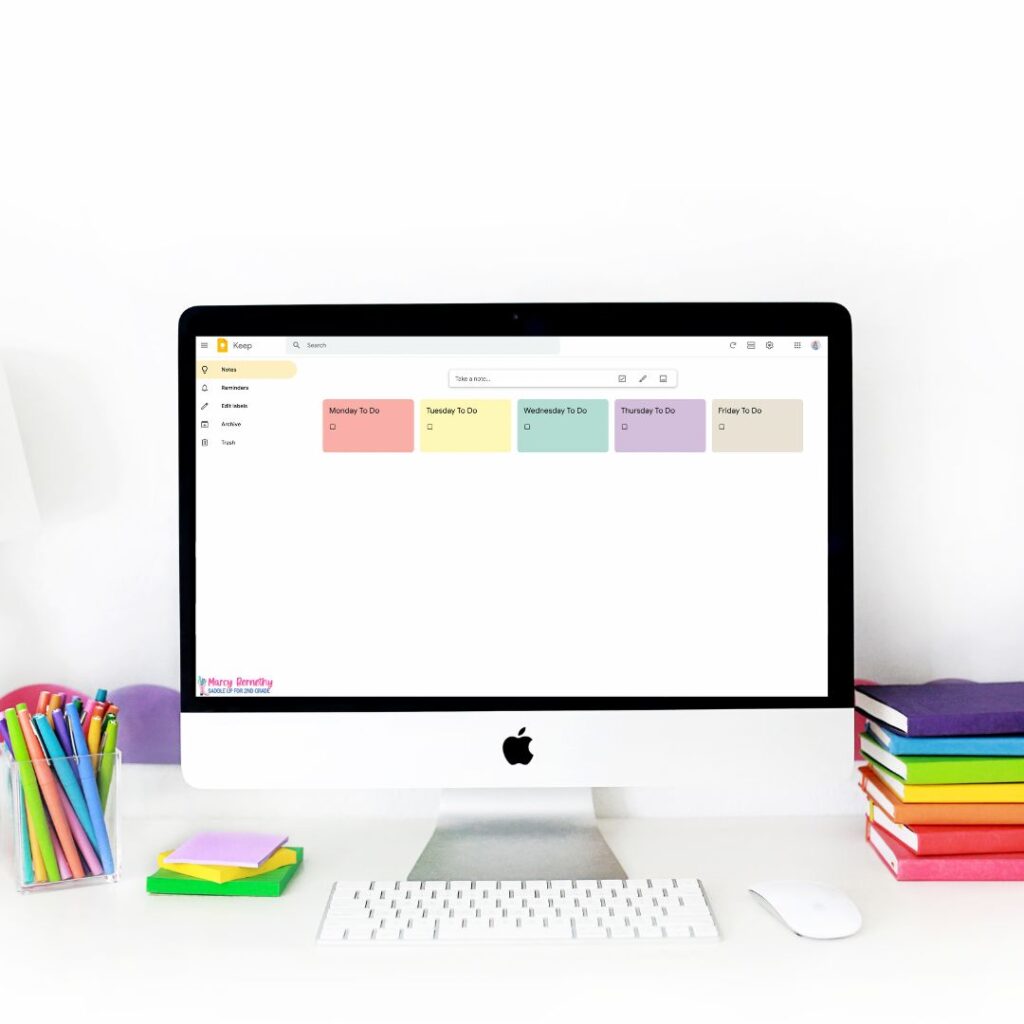
Let’s face it, teachers juggle a lot. Lesson plans. Meetings. Emails. Supplies. It never ends. Using a digital checklist helps me keep all of that in one place.
Here’s why I love it:
Ready to dive in? Here’s how to get started:
That’s it! You’re ready to start creating your first digital checklist.
If you’ve never used this tool before, don’t worry, it’s super beginner friendly. Here’s a quick walkthrough:
Go to keep.google.com and log in with your Google account. You’ll see a blank canvas where you can start adding notes.
Click where it says “Take a note…” to get started. You can add a title and then either jot down a quick note or turn it into a checklist by clicking the little checkbox icon.
Click the paint palette icon to change the background color of your note.
Want to keep a note at the top? Click the little pin icon and it’ll stay front and center. This is perfect for your weekly planning or daily task list.
Labels make it easier to sort and search later. You can label notes as “Reading,” “Back to School,” “Parent Communication,” or whatever works best for your brain.
Pro tip: You can rearrange list items by dragging them up or down – perfect for prioritizing your tasks!
One of my favorite features in Google Keep is the ability to add custom images to the top of your notes. These make your notes not just functional, but cute and easy to find at a glance.
Here’s how you do it:

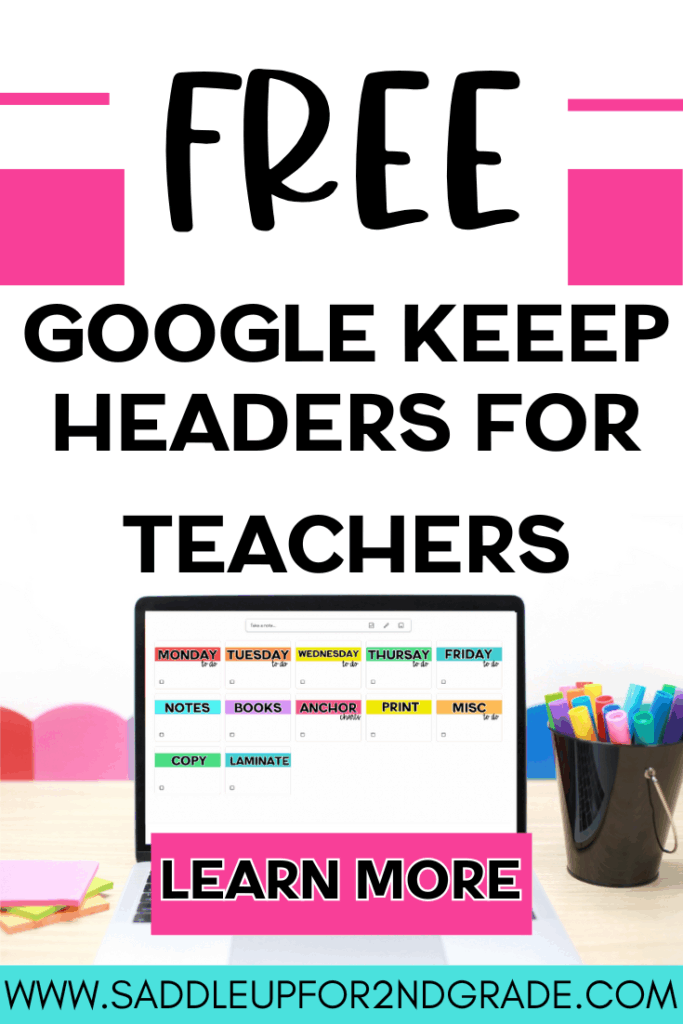
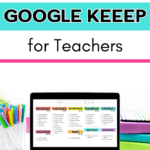
Custom Google Keep headers help you quickly identify each of your lists. I use headers for things like:
It just helps me stay more visually organized and makes my teacher heart go pitter patter at the same time.
Keep scrolling to get 71 Free Google Keep Headers for Teachers
Now for the fun part! Let’s explore specific ways to use Google Keep for teacher organization:
To help make the most of my time, I needed a solid plan of daily tasks during my planning period. I created a daily digital checklist for everything I need to accomplish each day of the week. Then, I just rinse and repeat each week.
Book Lists and Resources
Need a read aloud for an upcoming unit? Add it to your digital checklist to remember to grab it from your library, borrow from a teacher friend, or order off Amazon.
Never forget to make an anchor chart again. I used to be the queen of this. I’d start a lesson and go shoot, I forgot to prep this addition stratgies anchor chart ahead of time. Write down each one you need to make for the coming weeks and check them off as they are done.
These help me remember those once a month routines like making our class snack calendar or printing my monthly writing prompts.
I love Google Keep for my personal life, too! Since I can use it on the go, I can type out my grocery list and thoughts I don’t want to forget.
To keep your Google Keep organized and functional:
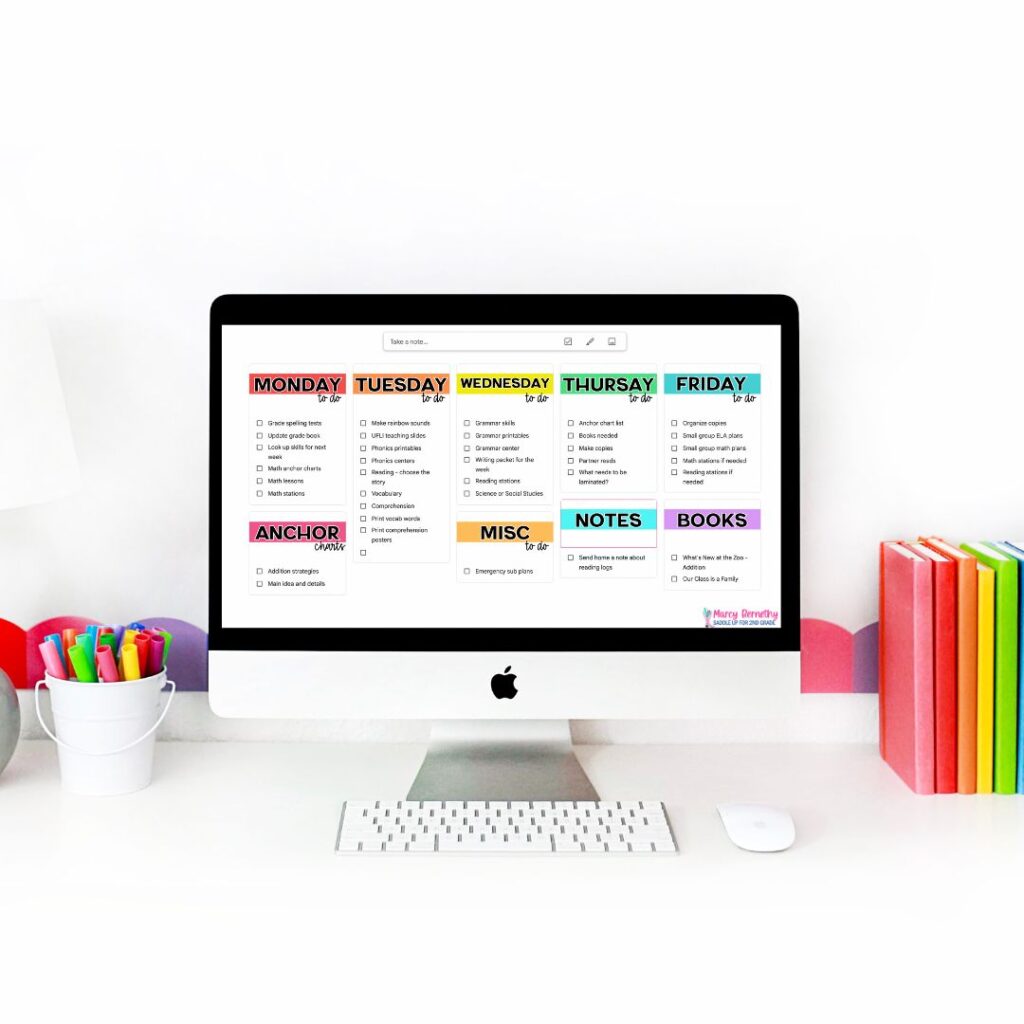
Want to save time designing your own headers? I’ve created a free set of 71 premade Google Keep headers just for teachers. These are great for organizing all your school-related notes, plus I threw in a few personal ones (like “Meal Planning” and “Home To Do”).
These headers are:
Get your complete set of 71 Free Google Keep Headers sent straight to your inbox! These beautiful, teacher-designed headers will transform your digital organization and make your Google Keep dashboard both functional and visually appealing.
These headers are designed specifically for elementary teachers and come as high-quality images ready to upload.
Google Keep is one of those tools that’s so simple, you might overlook it—but once you start using it, you’ll wonder how you managed without it. Whether you use it for weekly lesson plans, student needs, or organizing your teacher life, it’s flexible enough to fit whatever you need.
Start with one simple list today. Maybe it’s your planning period tasks or a quick book wishlist. Once you experience how satisfying it is to check items off your digital checklist and have everything sync across your devices, you’ll wonder how you ever managed without it.
Remember, the goal isn’t to be perfectly organized overnight. It’s about finding small ways to make your teaching life easier, one digital checklist at a time.
Looking for more teacher organization ideas such as ways to store your math manipulatives, utilizing a teacher cart, or just setting up your second grade classroom? I’ve got you covered!
Love this idea and want to save it for later? Pin it to your favorite Pinterest board so you don’t forget!