

If you’re a teacher, you know the morning routine… open ClassDojo, Google Classroom, your attendance portal, IXL, maybe some calming music, your favorite brain break sites… and that’s before you even check your email. Even if you have all of these sites bookmarked, clicking each one individually every single day can get old fast. Instead of spending 5 minutes every morning opening all of your tabs, learn how to save Google Chrome tabs into a folder so you can open them all at once with just one click. This is one of my favorite time-saving technology tips for teachers, and once you set it up, you’ll wonder how you ever lived without it.
Want more tips for using Google apps as a teacher? Check out these blog posts:

When your internet browser is overflowing with tabs (kind of like our brain as teachers), it’s easy to waste time searching for the right one, or worse, accidentally closing something important. Learning how to save your Google Chrome tabs can streamline your daily routine, keep you organized, and make sure you always have exactly what you need.
Adding this trick to your teacher technology toolkit is totally worth it because it helps you:
Here’s the quick and easy step-by-step process teachers can use to save and open all their tabs with one click:
Start your day by opening every website you typically use, such as your attendance portal, Google Slides, music playlists, Google Drive, curriculum sites, etc.
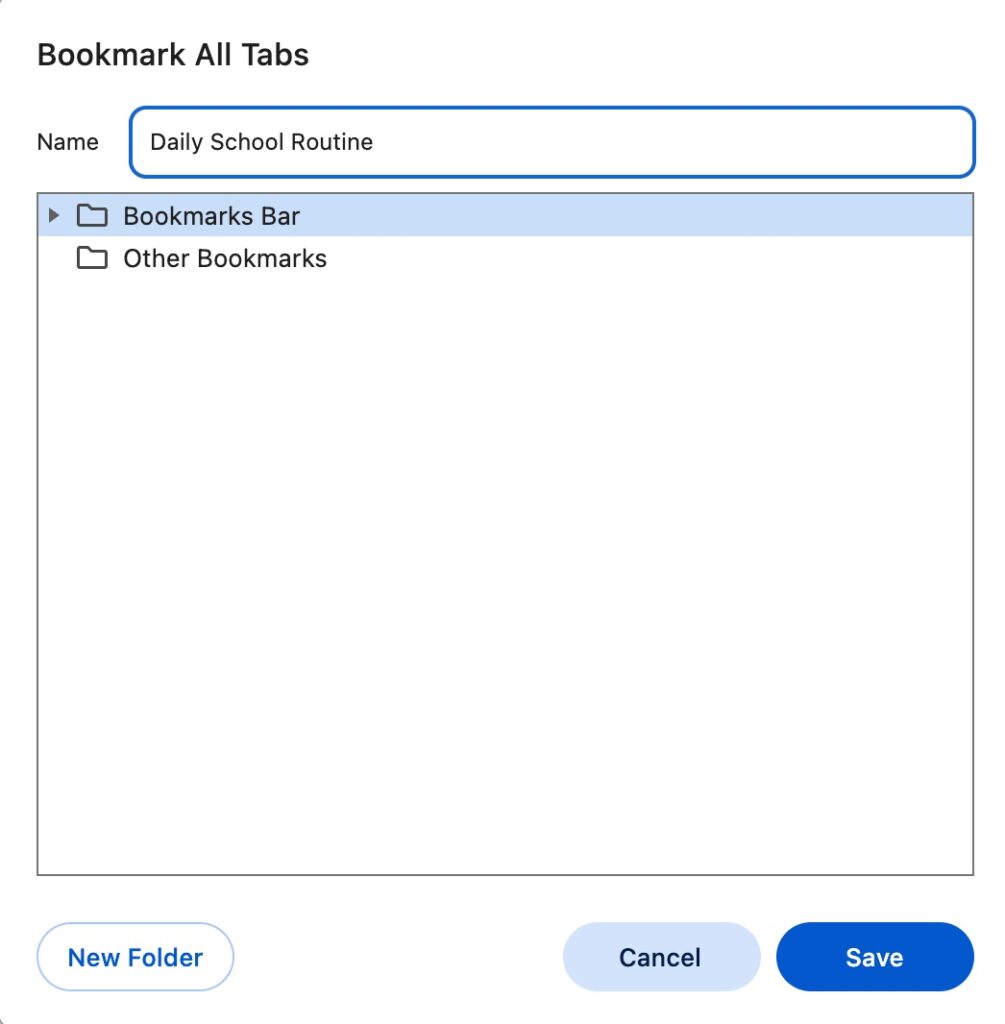
When you’re ready to start your day or open the specific tabs you need for a certain subject:
If you use the bookmarks bar feature where your bookmarks are all shown across the top of your screen under the search bar, follow this process.

Once you know how to save Google Chrome tabs, you can get creative with your folders to maximize your efficiency during the day.
Customize your Google Chrome tabs with different folders for different times of day:
Learning how to save Google Chrome tabs is a game-changer for busy teachers. This simple trick helps you stay organized, keeps your routine consistent, and saves you those precious extra minutes before the bell rings (and throughout the day).
And if you love simple, time-saving strategies like this (who doesn’t?!), you’ll love the Inner Circle Math Membership. It’s packed with ready-to-use math lessons and center activities, math organization resources, and tools that help you lesson plan and teach smarter, not harder.
Stop wasting time and money on random resources that get lost in your downloads. When you join this membership, you’ll get access to all of my math resources for 1st-3rd grade for just $10.99 a month. They’re all organized in one handy portal so you can simply log-in, search, and download what you need.
It’s a game-changer for:
Love this post? Save it to your favorite Pinterest board so you can revisit this Google Chrome Tab tutorial any time you need!