

If you’re anything like me, your Google Drive is overflowing with lesson plans, PDFs, printables, and about 37 versions of your weekly newsletter. You tell yourself every week that “you’ll organize it later,” but “later” never comes. Then, when it’s time to find that place value game you swear you used last fall… it’s nowhere to be found. If this sounds like you and your digital files are a mess, you’re going to love this blog post, because I’m sharing Google Drive organization tips for teachers to help tame the digital chaos.
From structuring folders and color-coding to naming files so you never miss a thing, these are the exact Google Drive tips that will help you organize your teacher life so you can spend less time digging for files and more time doing what you love… teaching!
Want more tips for using Google apps as a teacher? Check out these blog posts:
Google Drive is a powerful tool for classroom organization and planning, especially if you choose to pair it with Google Classroom. I don’t know about you, but I find Google Drive and Google Apps (Docs, Spreadsheets, Forms, etc) so much easier than Microsoft. Plus, the autosave feature has saved me hundreds of times!
But just like anything, if you don’t have a solid Google Drive organization system, it can quickly turn into a digital junk drawer (you know, the kind in your kitchen that has no less than 587 totally random items).
You don’t even have to be Type A for this to work (ya’ll know I’m not!). A little structure goes a long way, so think of your Google Drive like your file cabinet, but smarter, searchable, and accessible anywhere.
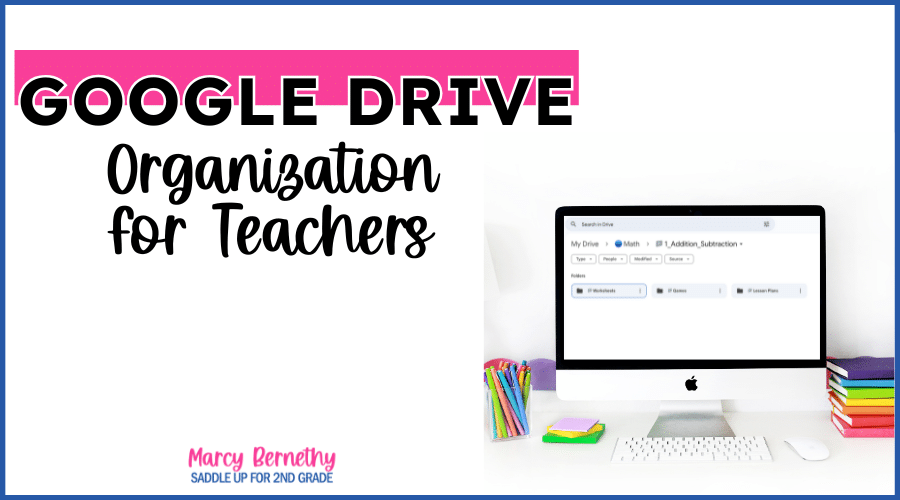
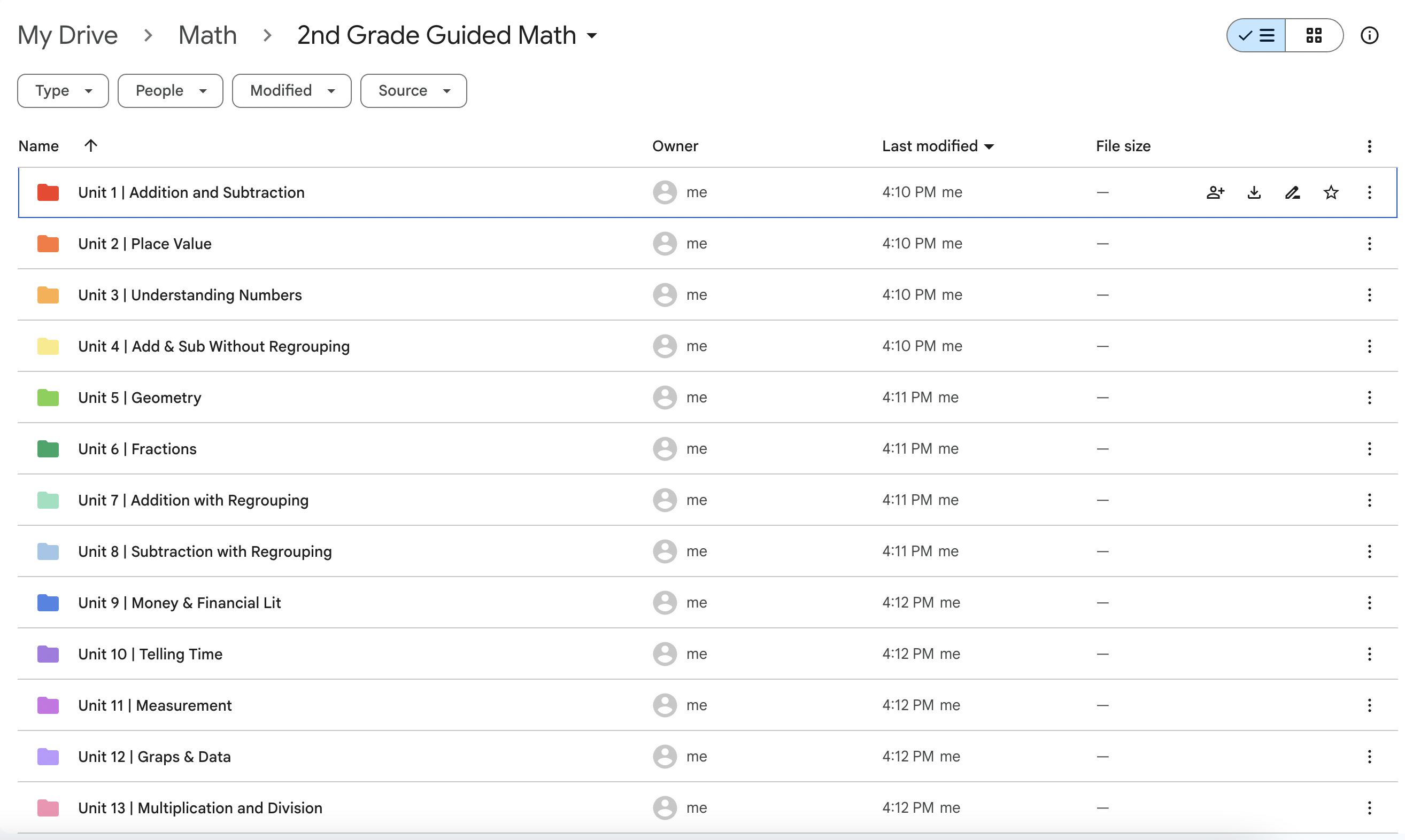
Start by creating your main subject folders for the core areas you teach. Inside each subject folder, add subfolders based on concepts or units. Then, inside each subfolder is where you’ll find specific items and files.
Here’s what that might look like:
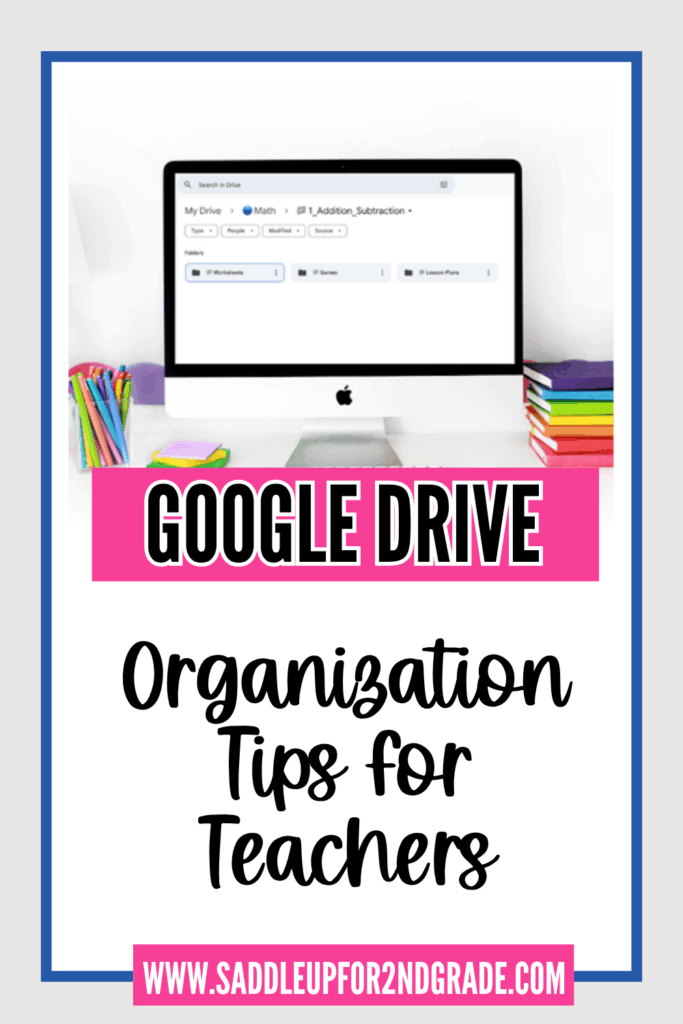
📁 Math
📁 1_Addition_Subtraction
📁 Lesson Plans
📁 Games
📁 Worksheets
📁 2_Place_Value
📁 3_Measurement
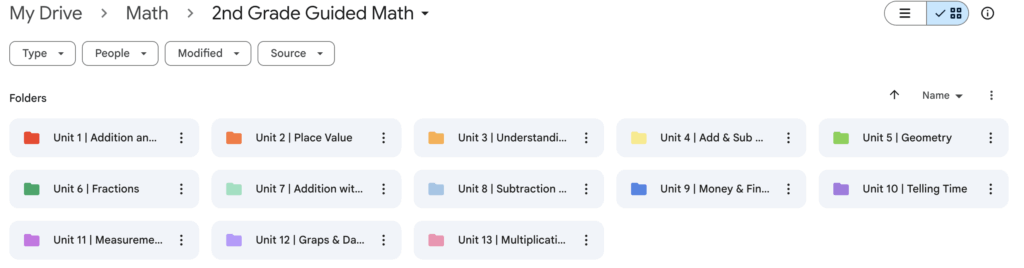
📁 Lesson Plans
📁 Week_01
📁 Math
📁 Addition Strategies Anchor Chart Template
📁 Turn-Around Facts Activity
📁 Reading
📁 Science
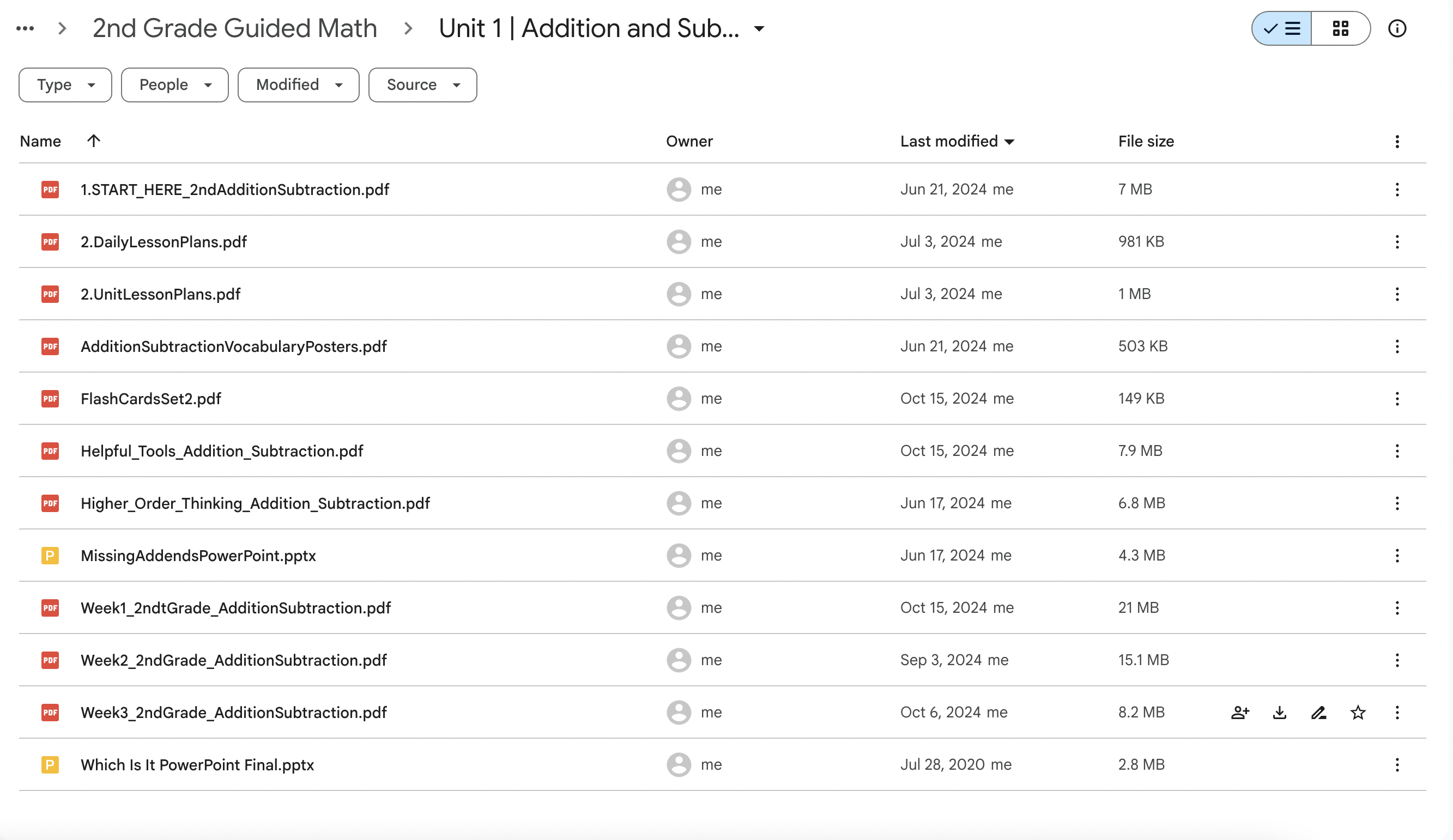
Organizing by unit and then by resource type helps you quickly find exactly what you need, especially when you’re short on planning time.
Looking for more ways to get organized and make lesson planning a breeze? Check out my FREE Weekly Lesson Planning Template below!
The way you name files can make or break your system. Trust me… I’ve spent countless hours attempting to find files that are unnamed or simply say “math test.” That’s just simply not specific enough!
Be descriptive and consistent so that everything is easy to find, especially when you’re searching on a time-crunch.
Instead of “math test,” try this:
📝 TEST_Quarter_One_Math
📝 TEST_Place_Value_Math
It’s also important to consider the grade level, topic or subject, and date or season when naming files.
Here’s some examples:
📄 2nd_Grade_Daily_Word_Problems
📄 READING_Anchor_Chart_Making_Inferences
📄 FALL_Math_Centers_2ndGrade
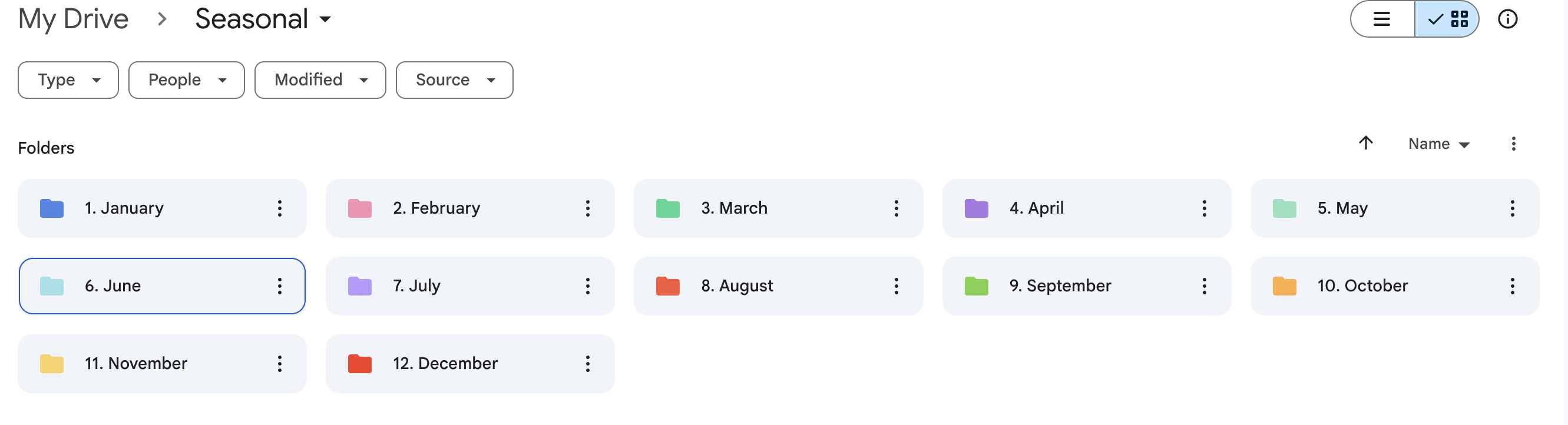
Teacher Tip: Want to keep certain files at the top of your folder or materials in a certain order? Add a number or letter at the beginning like:
📁 1_Addition_Subtraction
📁 2_Place_Value
This keeps your scope and sequence in order without relying on memory.
If you’re a teacher, chances are you love a good color-coded system. Another Google Drive tip for teachers is to assign different colors to your subject folders or different types of folders to make things easier on the eyes (and on your brain!).
Here’s how I color code my Google Drive folders:
🔵 Math = Blue
🟢 Reading = Green
🟣 Science = Purple
🟠 Assessments = Orange
This simple trick makes your Google Drive feel more like a calm, organized space, and less like a digital tornado.
Let’s be real… the beginning-of-year organization always feels great. It’s fun, exciting, and sets you up for success. But what about that mid-year, pre-holiday hustle that leaves your classroom organization (and digital organization) in shambles?
The trick to keeping your Google Drive organized as a busy teacher is to put systems in place that make it easy to stay organized, no matter how many files you acquire over the school year.
Here are some quick Google Drive organization tips:
If you’re ready to make teaching math and getting organized easier this year, check out the Inner Circle Math Membership for 1st-3rd grade teachers! You’ll get instant access to ready-to-use math resources, including all of my guided math units, math centers, exit tickets, seasonal resources, worksheets, games, and MORE!
With all of these resources ready to grab-and-go, you’ll be able to organize them with ease and make the most of them using these Google Drive tips for teachers.
Whether you’re looking to simplify your planning or boost student engagement, the Inner Circle has everything you need to feel confident and prepared, without spending hours searching for the perfect activity.
Google Drive can be your best friend as a teacher, if you set it up with a little intention. With a solid folder structure, naming systems, and color coding, your Drive will finally start working for you instead of against you.
And those days of frantically looking for a file so you can finish your lesson plans with only 2 minutes left of your planning period? They’re over.
Whether you’re organizing lesson plans, math centers, or your daily word problems, a streamlined Google Drive will give you back tons of time and sanity (and doesn’t every teacher want that?!).
Looking for more classroom organization inspiration? Check out these helpful posts next:
Love this post? Save it to your favorite Pinterest board so you can revisit these Google Drive organization tips any time you need a digital refresh!